How to Build Custom Machine Reports for Manufacturing: A Guide to Data-Driven Production Analysis

Standard canned reports answer the questions your vendor thought to ask. Custom reports answer the questions that actually keep you up at night. When a plant manager needs to know why Machine 14's cycle times drifted 8% last Tuesday between 2pm and 4pm, no pre-built dashboard can help. Here's how modern IIoT platforms enable manufacturing engineers to build custom machine reports — and why this capability separates serious platforms from expensive dashboards.
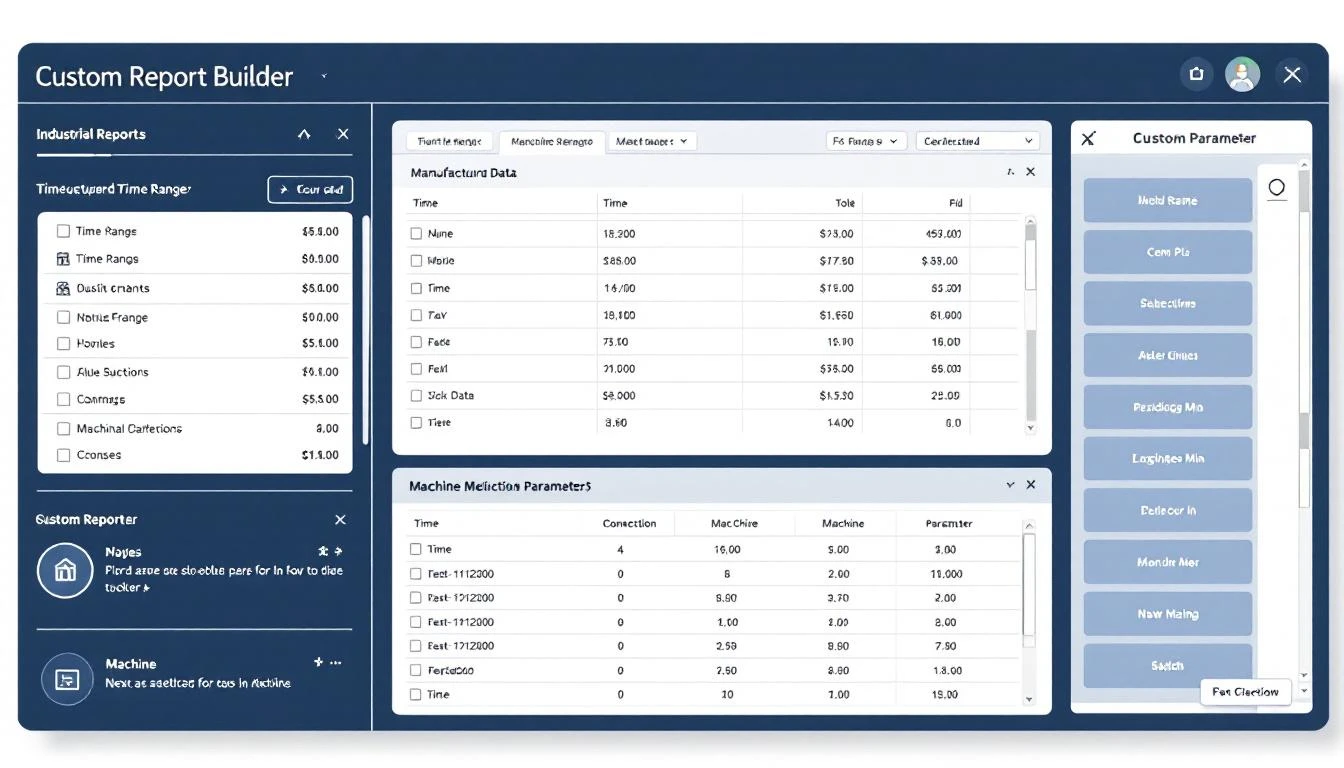
Why Canned Reports Aren't Enough
Every IIoT platform ships with standard reports: OEE by machine, downtime summary, alarm history. These cover the basics. But manufacturing problems are rarely basic.
Real investigations look like this:
"We had a quality excursion on Line 3 last week. The parts were slightly out of tolerance starting mid-shift Wednesday. What changed? Was it temperature? Hydraulic pressure? Material batch? Operator changeover?"
To answer this, you need to pull specific parameters from specific machines across a specific time range — and overlay them on a single chart. That's a custom report.
Manufacturing engineers who can build their own reports solve problems 3-5x faster than those who wait for IT to pull data from a historian or write SQL queries against a database. The ROI of self-service reporting is measured in hours of investigation time saved per incident.
The Anatomy of a Manufacturing Machine Report
A well-designed custom report system follows a logical hierarchy that mirrors how manufacturing operations are organized:
Step 1: Select the Location
Multi-plant manufacturers start at the location level. Which plant contains the machines you want to analyze? This narrows the dataset immediately and ensures you're pulling data from the right facility.
Step 2: Select the Zone
Within a plant, production areas are organized into zones — injection molding, assembly, packaging, warehouse. Selecting a zone further narrows the scope and reduces noise from unrelated machines.
Step 3: Select the Machines
Now you choose which specific machines to include. This could be:
- Single machine investigation: One machine with a specific problem
- Machine comparison: Three identical machines to compare performance
- Line analysis: All machines in a production line to identify bottlenecks
- Shift comparison: Same machines across different time periods
Step 4: Select the Parameters
This is where custom reports become powerful. Parameters (also called tags or data points) are the specific measurements from each machine's PLC:
- Process parameters: Temperature, pressure, speed, torque, current
- Production counters: Parts produced, cycle count, scrap count
- Quality metrics: Weight, dimensions, force measurements
- Utility data: Energy consumption, water flow, compressed air pressure
- Status data: Running/idle/alarm state, recipe number, operator ID
The best report builders let you select parameters from each machine independently. Maybe you want barrel temperature from Machine 3, mold temperature from Machine 3, and cycle time from Machines 3, 4, and 5 — all on the same report.
Step 5: Select the Time Range
Time range selection determines the resolution and context of your data:
- Last 24 hours: Troubleshooting a current issue
- Last 7 days: Identifying a trend that started this week
- Custom range: "March 2 to March 5, 6am to 6pm" for a specific investigation
- Shift-aligned: "First shift only" to isolate operator-dependent patterns
Step 6: Generate and Analyze
The report renders as time-series charts overlaid on the same time axis, allowing visual correlation between parameters. When barrel temperature rose from 380°F to 395°F at 2:15 PM and cycle time increased from 12.3s to 13.1s at 2:17 PM — that two-minute lag is visible on the chart and tells you exactly what happened.
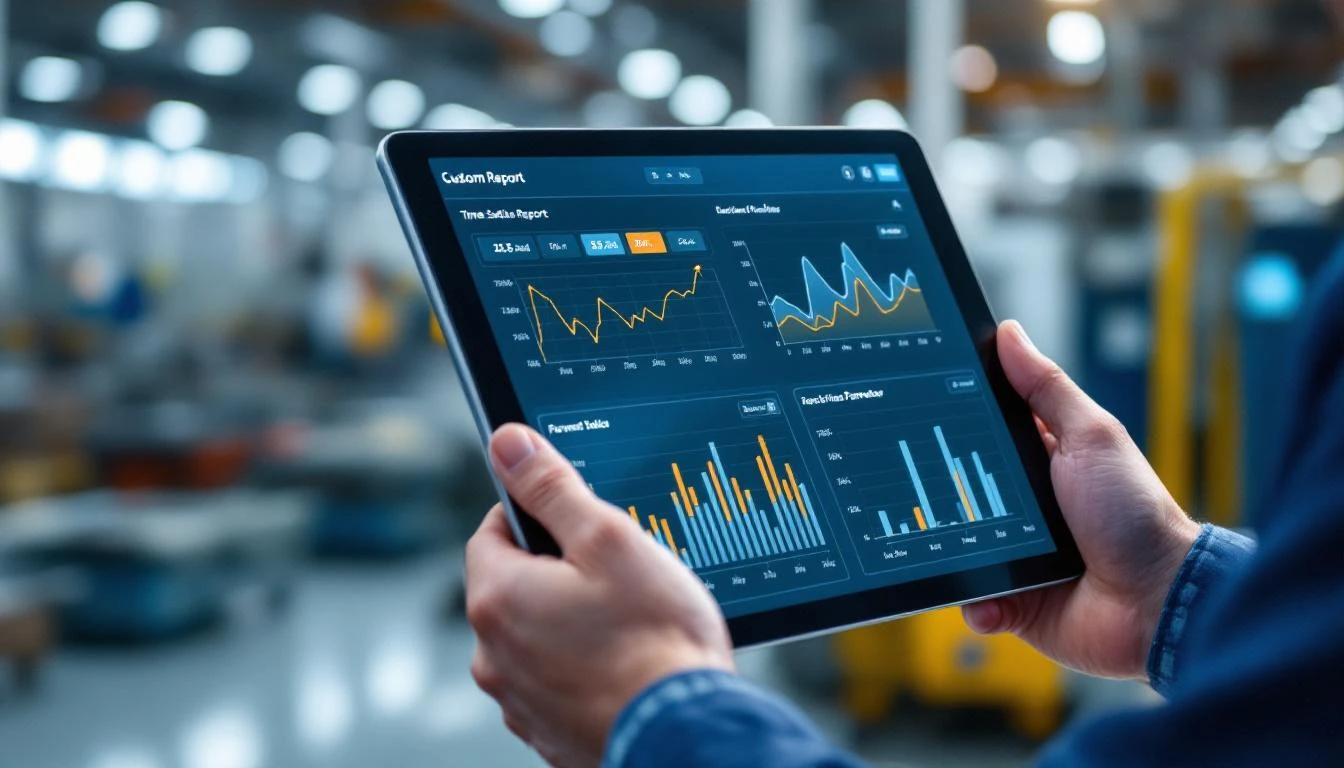
What Good Custom Reporting Looks Like
Not all report builders are created equal. Here's what to look for in a manufacturing IIoT report builder:
1. Multi-Parameter Overlay
The ability to plot multiple parameters on the same time axis is non-negotiable. Single-parameter charts require you to manually correlate timestamps across separate graphs — which is what you're trying to avoid.
Look for:
- Dual Y-axis support (temperature on left axis, pressure on right axis)
- Color-coded parameter lines
- Zoom and pan across the time axis
- Tooltip showing all parameter values at a specific timestamp
2. Cross-Machine Comparison
Plotting the same parameter from multiple identical machines reveals performance variation. If you have five of the same CNC machine and one consistently runs 7% slower, the comparison chart shows it immediately.
3. Report Saving and Sharing
Good report builders let you save a report configuration (selected machines, parameters, and time range template) for reuse. When the same quality excursion happens next month, you don't have to rebuild the report from scratch — load the saved template and update the dates.
4. Export Capabilities
Manufacturing engineers need to share findings with maintenance, quality, and management. Export to PDF, CSV, or Excel enables:
- Attaching report data to quality investigations
- Sharing charts in morning production meetings
- Building trend analysis in external tools
5. Timezone Awareness
This seems minor until your plant runs across a timezone boundary or your corporate office reviews data from a different timezone. Report timestamps should be timezone-aware and consistent with the plant's local time.
6. Tag-Level Granularity
The best systems let you select individual PLC tags — not just pre-defined parameter groups. If your PLC reads 200 tags per machine, you should be able to include any combination in your report. Pre-grouped parameters (where the vendor decides which tags go together) limit your investigation to scenarios the vendor anticipated.
Common Custom Report Use Cases
Root Cause Analysis
Scenario: Scrap rate spiked to 4.2% during second shift on Wednesday.
Report configuration: Select the affected machine, pull temperature, pressure, cycle time, material feed rate, and scrap count. Set time range to second shift Wednesday with one-hour buffer on each side. Look for the parameter that deviated first.
Machine Degradation Tracking
Scenario: Maintenance suspects a hydraulic pump is wearing out.
Report configuration: Select the machine, pull hydraulic pressure, pump current draw, cycle time, and oil temperature. Set time range to the last 30 days. Look for gradual trends — increasing current draw to maintain the same pressure is a classic pump degradation signature.
Shift Performance Comparison
Scenario: First shift consistently produces 5% more parts than third shift on the same machines.
Report configuration: Select all machines in the zone, pull parts count and cycle time. Create separate reports for first shift and third shift over the last month. Compare average cycle times — are third shift operators running slower, or are there more idle periods?
Energy Optimization
Scenario: Electricity costs increased 18% month-over-month but production output didn't change.
Report configuration: Select all machines, pull energy consumption, running hours, and idle hours. Identify machines that consumed energy while idle — these are candidates for automated shutoff or sleep mode.
New Product Qualification
Scenario: Engineering is qualifying a new material and needs to document that process parameters stayed within specification throughout the trial run.
Report configuration: Select the machine, pull all process-critical parameters. Set time range to the trial run period. Export to PDF as evidence for the qualification package.
Report Builder Comparison: IIoT Platforms
| Feature | MachineCDN | Siemens MindSphere | Ignition | Generic Historian |
|---|---|---|---|---|
| Self-service report builder | ✅ Guided wizard | ⚠️ Requires config | ✅ But complex | ❌ SQL knowledge needed |
| Location → Zone → Machine hierarchy | ✅ | ⚠️ Varies | ⚠️ Varies | ❌ |
| Individual tag selection | ✅ | ✅ | ✅ | ✅ |
| Multi-parameter overlay | ✅ | ✅ | ✅ | ⚠️ Depends on tool |
| Save and reuse reports | ✅ | ✅ | ✅ | ⚠️ |
| Cross-machine comparison | ✅ | ✅ | ✅ | ⚠️ Manual |
| Shift-aligned time ranges | ✅ | ⚠️ | ⚠️ | ❌ |
| No IT/developer involvement | ✅ | ❌ Often needs help | ❌ Often needs help | ❌ |
MachineCDN's report builder uses a step-by-step wizard (location → zone → machines → parameters → time range → generate) that non-technical users can navigate without IT support. This matters because the people who need custom reports — maintenance engineers, production supervisors, quality managers — typically aren't database administrators.
Building Your First Custom Report
If your plant is new to custom IIoT reporting, start with these foundational reports:
- Daily process parameter report for your highest-value machine — catch drift before it causes quality problems
- Weekly energy consumption by machine — identify waste from idle machines
- Shift comparison for your highest-volume line — quantify the performance gap between shifts
- Monthly maintenance correlation — overlay maintenance events with parameter trends to validate that repairs actually fixed the problem
Each of these reports takes 5-10 minutes to build in a wizard-based system. The insights they provide can save thousands of dollars per occurrence.
Get Started with Custom Reporting
Ready to build reports that answer your specific manufacturing questions? Book a demo with MachineCDN and we'll walk through the report builder with your actual machine data — showing you exactly how to turn raw PLC data into actionable insights.